
Set up your Artwork: No frame, dry oil paint, use clear tape to flatten, if on paper.
Best lighting: is a gray day. Set up your artwork on the floor, easel or wall, whatever you feel comfortable with and make sure your camera is lined up with your artwork. Natural light is the bestght to take your art photo.
Center your artwork within the frame of your camera. Ensure your camera is vertical. Use the grid function: Settings/Camera/Composition/Grid ON. Crop and fill the frame with your artwork. Make sure the photo is taken head on, no angles and nothing to distract in the background. Take multiple shots to have a few to choose from.
Focus the Phone: When the iPhone’s camera is facing the subject, touch the portion of the screen where the subject appears. This will tell the phone where it should focus. By holding a finger on the screen, the item will come into focus and the yellow square, indicating the area of focus, will blink.
Adjust the Brightness: Just next to the yellow square is a sundial. Sliding a finger along the sundial’s scale will adjust the photograph’s brightness. On Android, use the plus/minus icon.
Hold Your Cell Phone as Steady as Possible: Be mindful of holding your phone steady.
To keep the file size down, change your camera settings to JPEG. Recent iPhones save files in the “high efficiency” HEIC format. To change to JPEG Settings>Camera>Formats>Most Compatible.
Edit your photo. Crop out edges so you are left with just the artwork.
Edit your photo, Part 2: Most phones come with basic photo editing options but for editing finer details, you can download a photo editing app on your phone or on your computer. Some commonly used ones are Adobe Lightroom, Snapseed, Moment app, or Picsart. While Photoshop is still the most popular, Photoshop Elements or Gimp allow basic functions such as color correction, cropping, and other minor adjustments.
Here are the features that you need to correct in your image BUT GO LIGHTLY WITH EDITING. You want your submission to be as close to the original as possible:
- Correct the colors in your image if you feel they don’t match the ones in your original This can be done using “color correction,” “color balance,” “temperature,” or “tint”
options on your phone. You can also adjust the brightness, contrast and saturation of your colors.
- Crop the image so that your artwork fills the image and is devoid of anything distracting in the background
- Resize your image if required and save it with the appropriate dimensions and resolution in jpeg format.
Submission Time: on the website: wickfordart.org go to ‘Exhibits’ click on the image, Only Squares Apply (take a look at the Prospectus and Registration Guidelines)
- Fill in the registration form with all your
- Hit Next
- Fill in your membership and number of artworks
- Hit Next again
- Fill in the Title, Medium, Style, Size and Price for your artwork
- And here’s where you will shine: at File Upload, hit Choose File – from your Photo Library, find the photo of your artwork and hit
- Onto Payment and you have submitted your work! You should receive an email receipt of this Congratulations and good luck!
How to Resize a Photo on an iPhone Without Any Third Party App
There are two approaches to resizing a photo on an iPhone without using an app. The first one consists in cropping an image to make it smaller. The second one consists in resizing an image without cropping it. Both can be done on an iPhone, without downloading a third-party app.
1. Reducing the size of a photo by cropping it
You can crop your photos using the iPhone’s photo app. To do so, follow these steps: Step 1: open your photo in the Photos app
Step 2: Tap edit button
Step 3: Tap Crop button at the bottom of the screen Step 4: Tap Crop box button at the top of the screen
Step 5: Select an aspect ratio among the various options (more on that below) Step 6: Select an orientation (Portrait or Landscape)
Step 7: Crop the photo
Step 8: Tap ‘Done’ button once you’re
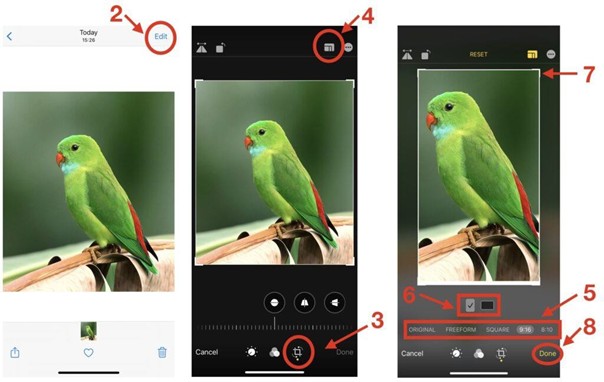
The iPhone’s Photo app gives a lot of flexibility with regards to the aspect ratio. This is great, as the aspect ratio is often considered more important that the image size.
Note that the aspect ratio can be either freeform or fixed:
- Freeform aspect ratio
- Fixed aspect ratio:
- Square
- 9:16
- 8:10
- 5:7
- 3:4
- 3:5 The freeform aspect ratio will allow you to choose any height and width for your picture. The fixed form aspect ratios will force the ratio between your picture’s height and width to be fixed.